
How to Set Up OpenClaw Yourself (The Full Walkthrough)
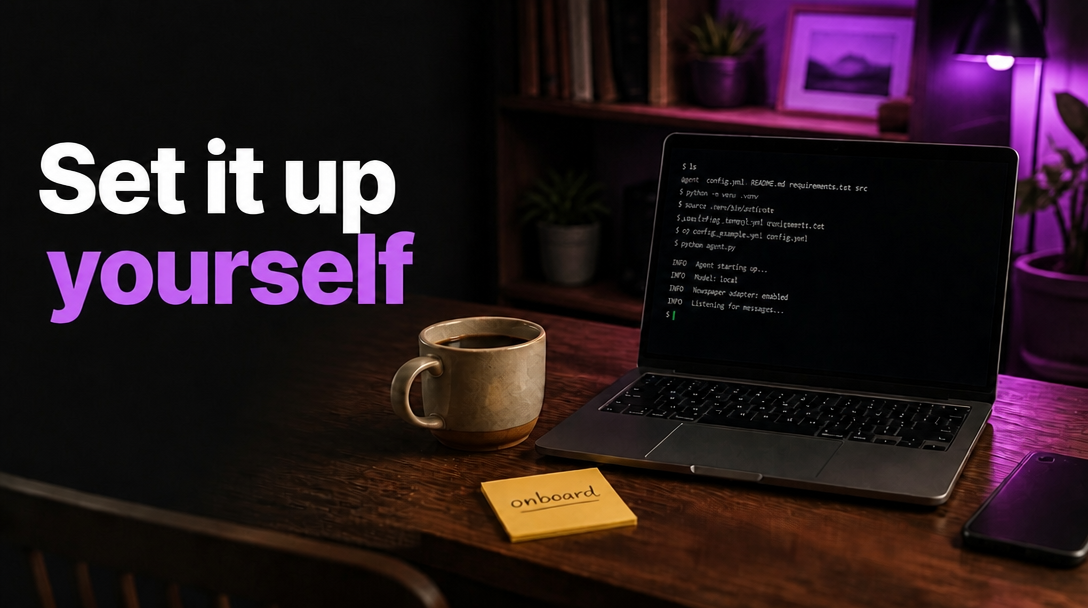
If you've been anywhere near tech Twitter or Hacker News lately, you've seen OpenClaw. It's the open-source AI agent that hit 140,000 GitHub stars faster than anything before it. People are running it on Mac Minis, Raspberry Pis, old laptops in their closets. The pitch is wild: an AI that lives on your machine, manages your email, controls your browser, runs terminal commands, and texts you on WhatsApp or Telegram without being asked.
I spent last weekend setting it up. It's genuinely cool. It's also more work than most of the YouTube thumbnails suggest.
Here's the real walkthrough.
What OpenClaw actually is
OpenClaw is a self-hosted AI agent created by Peter Steinberger (the guy behind PSPDFKit). It started as "Clawdbot" in late 2025, got renamed to "Moltbot" after Anthropic sent a trademark notice, then landed on OpenClaw.
The important part: it's not another ChatGPT wrapper. OpenClaw does things. You tell it to clear your inbox and it opens your email, reads through messages, and archives the junk. You ask it to check your calendar and it pulls up your schedule and sends you a summary on Telegram at 7am without you asking again.
It's model-agnostic. You plug in your own API key for Claude, GPT-4, Gemini, DeepSeek, or point it at a local Ollama instance if you want everything offline. All your data, memory, and conversation history lives on your machine. Nothing goes anywhere you don't send it.
That's the appeal. Full control, full privacy, no subscription. The tradeoff is that you're the one setting it up, maintaining it, and keeping it secure.
What you'll need
Before you start, gather these:
- Node.js v22 or newer. Check with
node --version. If you're below 22, update via nodejs.org or Homebrew (brew install node). - An LLM API key. Anthropic (Claude) gives the best results according to the community. OpenAI, Google Gemini, and DeepSeek also work. Ollama is free but requires a beefy machine.
- macOS, Linux, or Windows with WSL2. Native Windows support exists but it's experimental. WSL2 is the safer bet.
- A terminal you're comfortable with. You'll be running commands, editing JSON config files, and reading error output.
- 15 to 30 minutes. Maybe more if you hit snags.
Step 1: Install OpenClaw
Open your terminal and run:
npm install -g openclaw@latest
Then verify it worked:
openclaw --version
You should see something like 2026.2.x. If you get "command not found"
instead, your npm global bin directory probably isn't in your PATH. Find it with
npm prefix -g and add /bin to your shell config:
echo 'export PATH="$(npm prefix -g)/bin:$PATH"' >> ~/.zshrc
source ~/.zshrc
If you prefer Docker, that works too:
docker pull ghcr.io/openclaw/openclaw:latest
docker run -it -p 18789:18789 \
  -v $HOME/.openclaw:/home/node/.openclaw \
  ghcr.io/openclaw/openclaw:latest
And if you want to build from source (for poking around or contributing):
git clone https://github.com/openclaw/openclaw.git
cd openclaw
pnpm install
pnpm ui:build
pnpm build
Step 2: Run the onboarding wizard
This is where OpenClaw actually gets configured. Run:
openclaw onboard --install-daemon
The --install-daemon flag is worth including. It registers OpenClaw as a system
service so it starts automatically when your computer boots. Without it, the
agent only runs while your terminal window is open. Close the terminal, agent
dies.
The wizard walks you through a few things:
Pick your LLM provider. You'll paste in an API key. Anthropic's Claude is the recommended choice and what most people use. If you want to try it for free, Google Gemini has a free tier, and Ollama runs locally with no API key at all (though you'll need decent hardware).
Optionally set up a messaging channel. You can skip this and add it later. Telegram is the easiest starting point, and I'll cover that in step 4.
After onboarding finishes, run the doctor to make sure everything looks right:
openclaw doctor
It checks your config, Node version, service status, and channel connections. If something's off, it usually tells you exactly what to fix.
Step 3: Start the gateway
If you installed the daemon during onboarding, it's probably already running. You can check:
# macOS
launchctl list | grep openclaw

# Linux
systemctl --user status openclaw
If it's not running, start it manually:
openclaw gateway --port 18789
Now open http://localhost:18789 in your browser. You'll be asked for a Gateway
Token. This was generated during onboarding and lives in
~/.openclaw/openclaw.json. You can also grab it with:
openclaw config get gateway.auth.token
Paste that in, and you're looking at the OpenClaw dashboard. This is command central. You can chat with your agent here, manage channels, install skills, and see what it's been up to.
Step 4: Connect Telegram
Telegram is the easiest messaging channel to set up. Here's the full process.
Create a bot. Open Telegram and message
@BotFather. Send /newbot. Pick a display name (like
"My OpenClaw") and a username ending in bot (like myopenclaw_bot). BotFather
gives you a token. Copy it.
Get your user ID. Message
@userinfobot and send /start. It replies with your
numeric user ID. Save that.
Add it to your config. You can use the CLI:
openclaw config set channels.telegram.enabled true
openclaw config set channels.telegram.botToken "YOUR_BOT_TOKEN"
openclaw config set channels.telegram.dmPolicy "pairing"
openclaw config set channels.telegram.allowFrom '["YOUR_USER_ID"]'
Or edit ~/.openclaw/openclaw.json directly and add:
{
  "channels": {
    "telegram": {
      "enabled": true,
      "botToken": "YOUR_BOT_TOKEN",
      "dmPolicy": "pairing",
      "allowFrom": ["YOUR_USER_ID"]
    }
  }
}
Restart and pair. Restart the gateway (or the service), then send any message to your bot in Telegram. It replies with a pairing code. Approve it:
openclaw pairing approve telegram <CODE>
You're connected. Message your bot and OpenClaw responds.
Step 5: Make it yours
Once it's running, the fun part is customization. Your agent's personality and
memory live in the workspace directory at ~/.openclaw/workspace/.
SOUL.md defines your agent's personality. Open it and write however you want your agent to behave:
You're direct, concise, and a little dry. You ask questions before making
assumptions. You don't use emoji unless I use them first.
MEMORY.md stores persistent context. Things like your name, preferences, ongoing projects, important dates. The agent reads this at the start of every conversation.
My name is Alex.
I work in marketing at a SaaS company.
I prefer short responses.
Current project: planning Q2 content calendar.
Heartbeats let your agent message you on a schedule. You can set up a morning
briefing that texts you your calendar, top emails, and weather at 7:30am every
weekday. Configure the interval in your agent settings and write a
HEARTBEAT.md with instructions for what to check.
You can also run multiple agents with separate workspaces and personalities. Route your personal Telegram to one agent and your work Slack to another. They don't share memory or context.
Things to watch out for
This part matters. OpenClaw has real system access. It can run shell commands, read and write files, browse the web, and make API calls. One of its own maintainers said something along the lines of: if you can't comfortably use a command line, this project is too dangerous for you to run safely.
That's not gatekeeping. It's honest.
A few things to keep in mind:
Don't run it as root. Run it under a regular user account. Better yet, use a dedicated user or a Docker container.
Enable sandboxing. In your config, set agents.defaults.sandbox.mode to
non-main or all. This limits what the agent can do on your system, which
matters if you ever install third-party skills.
Audit third-party skills before installing them. Cisco's security research team found that a published community skill was quietly sending data out without telling the user. Read the source code before you install anything from the community registry.
Don't expose the dashboard to the internet. The dashboard at
localhost:18789 is an admin interface with full control over your agent. Keep it
local, behind a VPN, or accessible only through an SSH tunnel.
Keep it updated. Run npm update -g openclaw periodically. Config formats
sometimes change between versions, so check the changelog before major updates.
Common beginner mistakes:
- Wrong Node.js version (needs 22+, many machines have much older)
- Forgetting to add your user ID to
allowFrom(the agent silently ignores messages from unknown senders) - Not installing the daemon (so the agent stops when the terminal closes)
- Using your personal WhatsApp number (every message from every contact becomes agent input, including your bank's verification codes)
The honest take
I like OpenClaw. Setting it up, poking around the config files, watching it do things on my machine. There's something satisfying about running your own AI agent on hardware you own. If you enjoy tinkering with self-hosted tools, you'll have a good time with this.
But I'm also not going to pretend the setup is trivial. Between installing Node 22, getting an API key, running the CLI wizard, editing JSON config files, configuring a Telegram bot, setting up security and sandboxing, and dealing with the inevitable "command not found" or port conflict or wrong config path, it's a real project. Not a weekend-ruiner, but definitely a few hours of focused work. And once it's running, you're responsible for keeping it running, keeping it updated, and keeping it secure.
For some people, that's the point. Full control is worth the effort.
For others, it's a lot of work just to get an AI that texts you back.
Self-hosting OpenClaw
- Install Node.js v22+
- Get an LLM API key ($3-15/M tokens)
- Run CLI installer and onboarding wizard
- Edit JSON config files by hand
- Create and configure a Telegram/Discord bot
- Set up security, sandboxing, and access controls
- Maintain, update, and troubleshoot yourself
AI Chat SMS
- Text a phone number
- Start chatting
- Reminders, calendar, and memory built in
- Works on any phone with SMS
- No terminal, no config files, no API keys
- No maintenance or updates to worry about
- 50 free messages to try it out
If you love the command line and want an AI agent you fully own and control, OpenClaw is worth the afternoon. Go build it.
If you just want an AI assistant that works right now, from your text messages, without installing anything:
Hey, remind me to call the dentist tomorrow at 9am
Done! I'll text you tomorrow at 9:00 AM to call the dentist.
That's AI Chat SMS. No setup. No maintenance. Just text.
Ready to text your AI?
No app to download. Text us to start — one tap opens Messages with our number. 50 free messages to start.
Text (305) 588-2170
US & Canada only. Standard message rates apply.